1
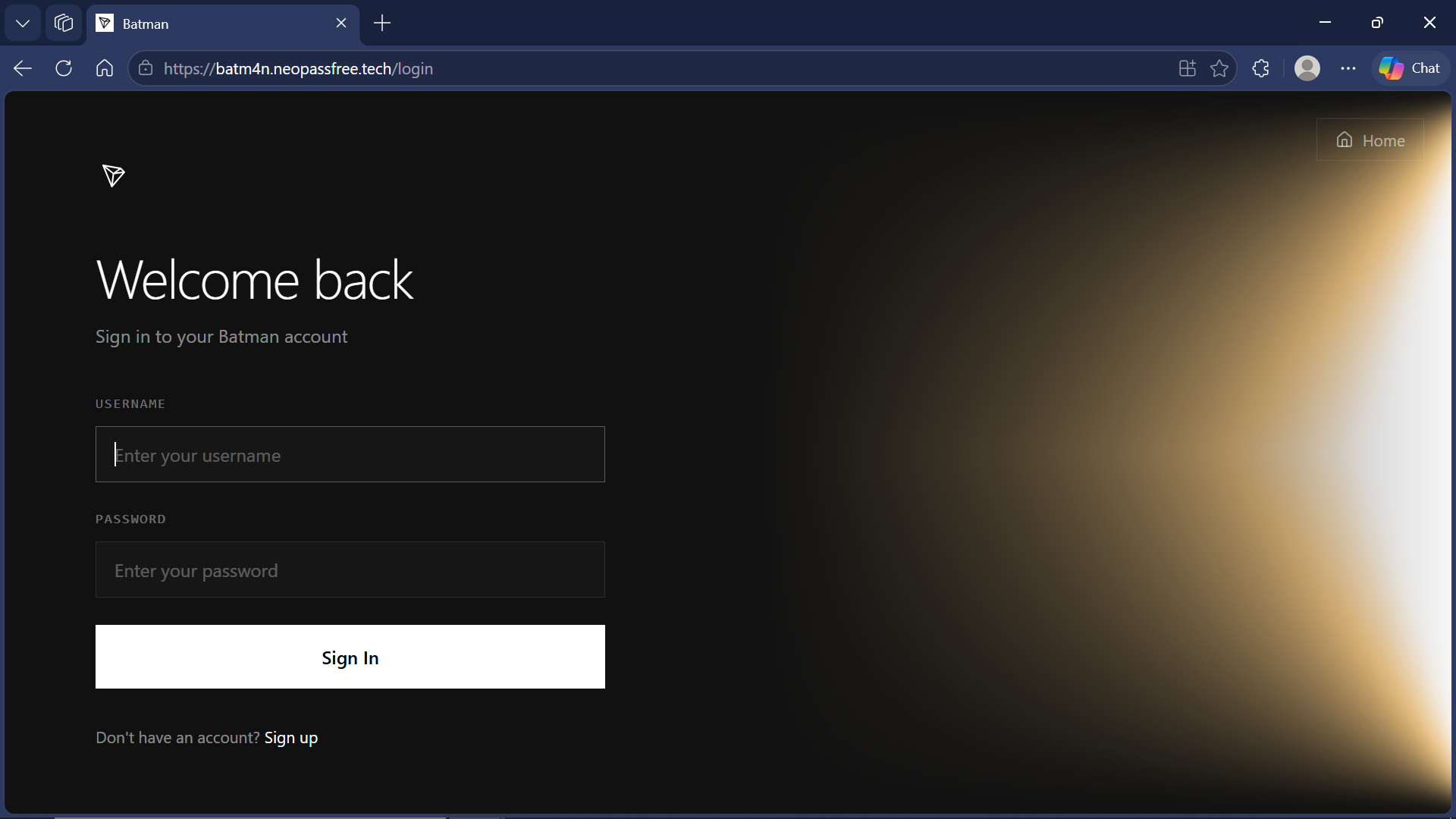
Sign In to Batman
Open the login page and click Sign In with your account credentials.
This page is the dedicated walkthrough for Product 2: Batman-0.1 EXE.
Use these official links to sign in, buy credits, and download batman-01.exe.
Open the login page and click Sign In with your account credentials.
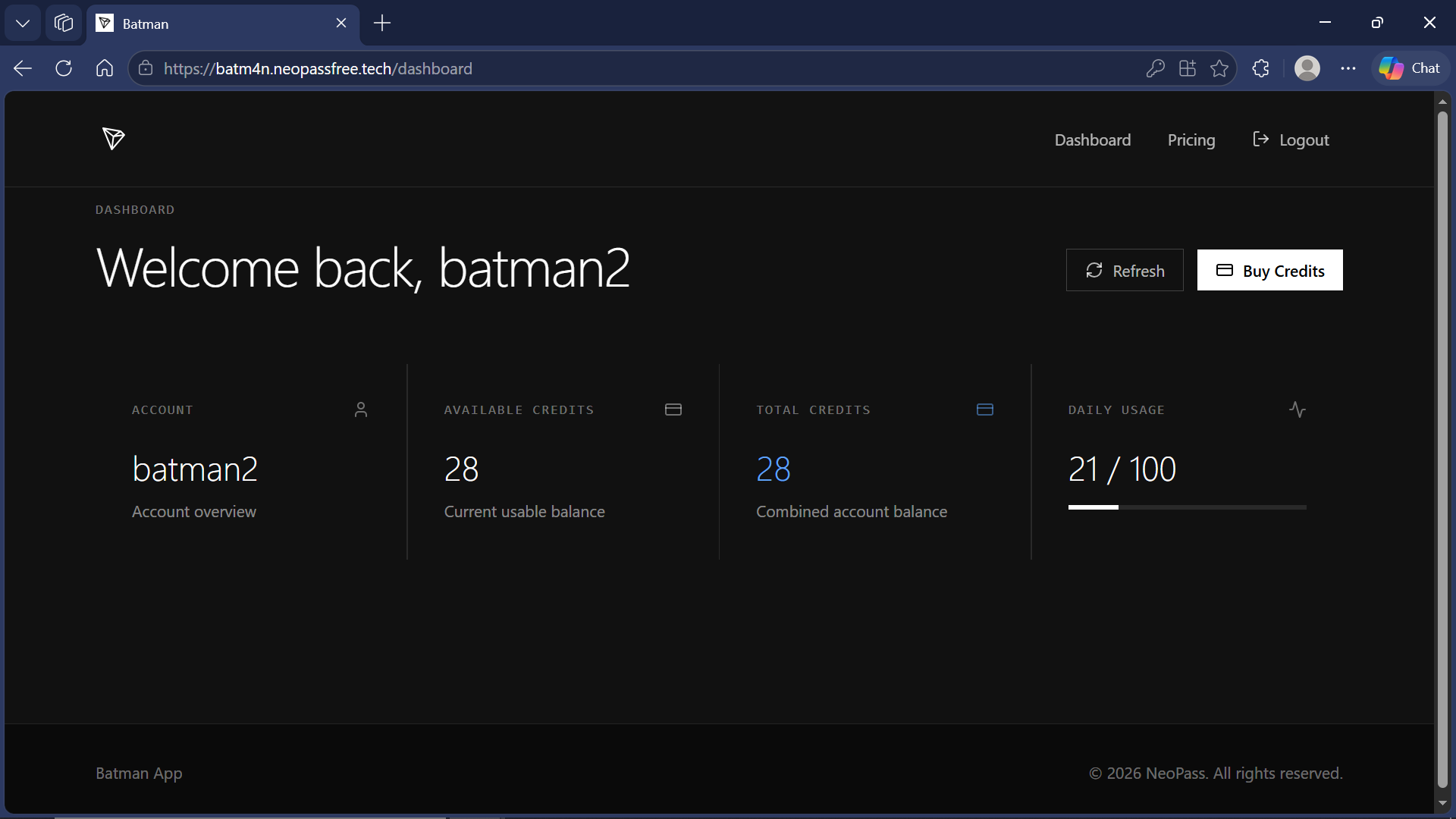
After login, verify your account on the dashboard and check available credits. Click Buy Credits if needed.
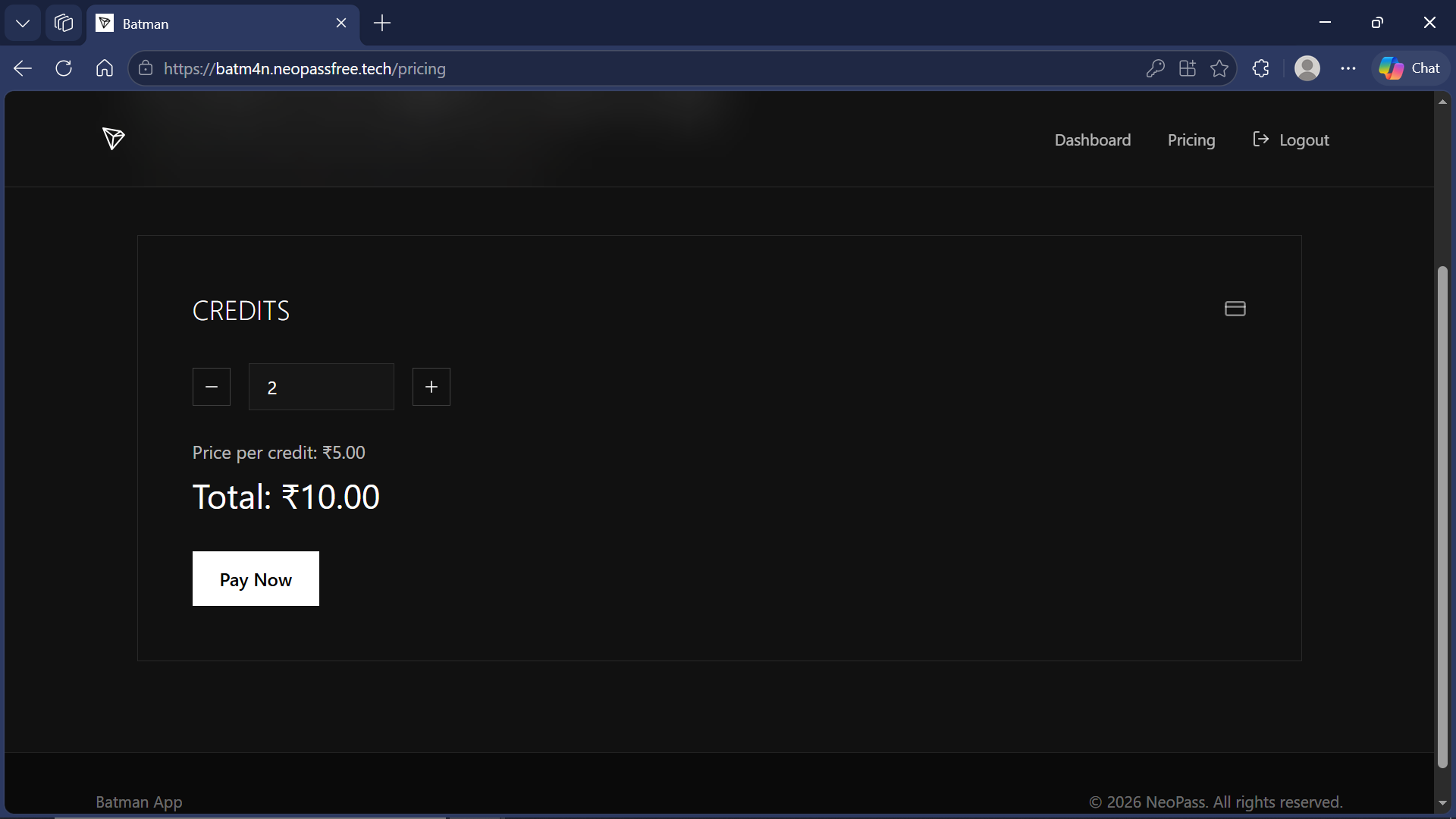
Go to the pricing page, choose how many credits you need, and click Pay Now.
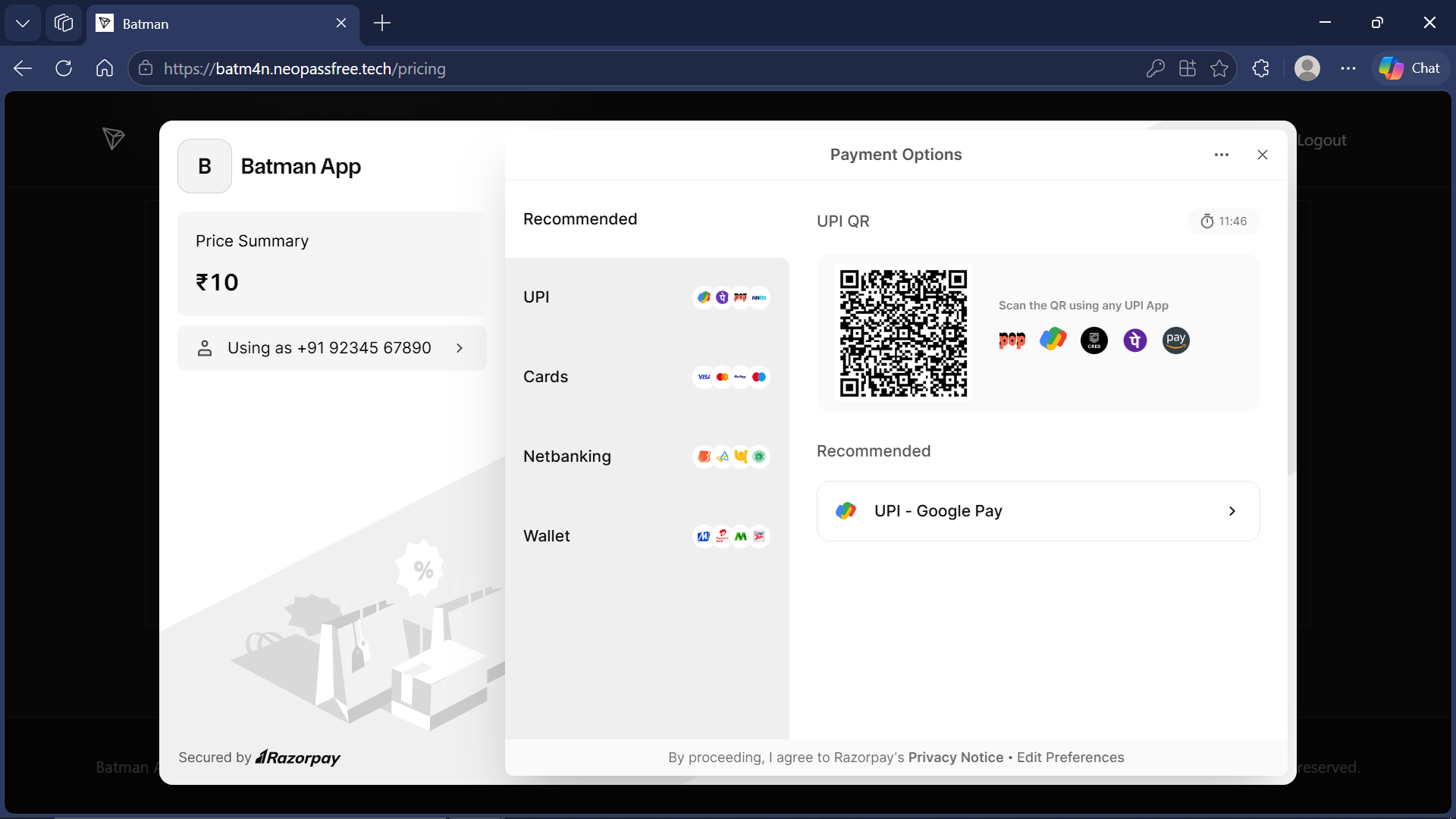
In the payment window, scan the QR code or choose a UPI method to complete payment successfully.
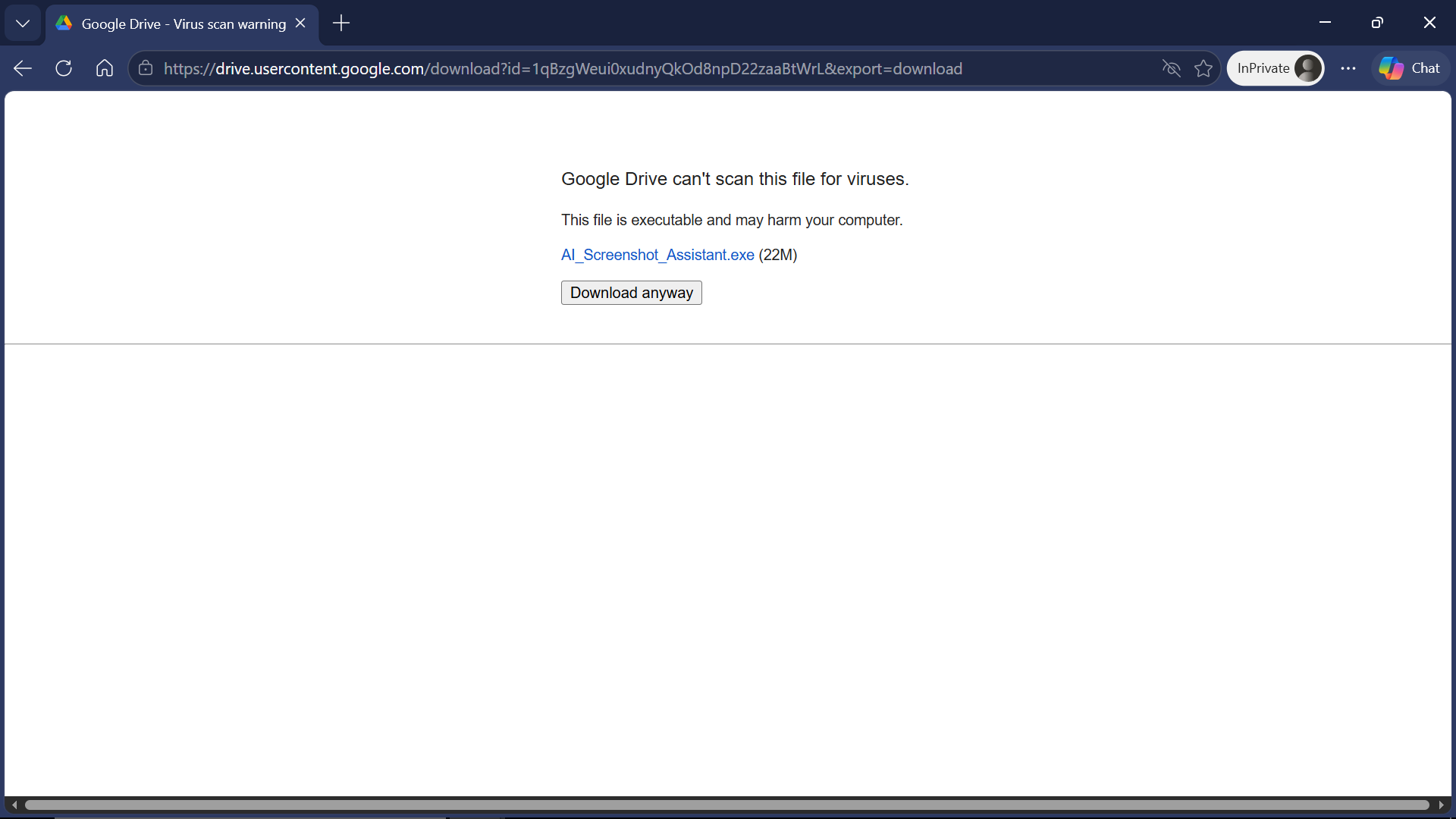
Open the Google Drive link and click Download anyway on the virus scan warning page.
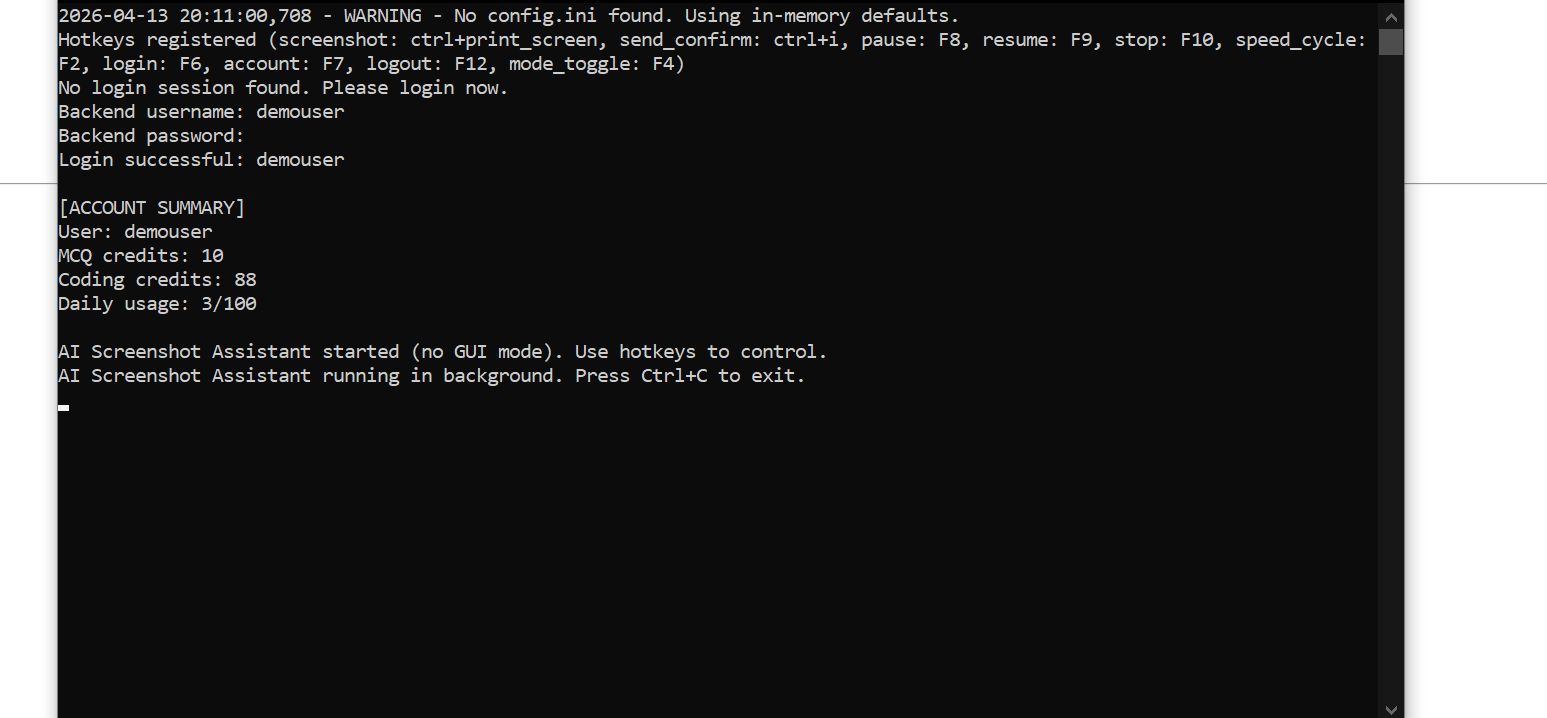
Open the downloaded EXE. A command window should appear showing login success, credits, and registered hotkeys.
Watch a quick Batman-0.1 runtime demo showing the auto-typing behavior.
Quick meaning of each registered shortcut from the app console output.
Takes a screenshot for assistant processing.
Sends confirm action to continue or submit the current assistant step.
Pauses background assistant activity temporarily.
Resumes activity after pause.
Stops the running assistant workflow.
Cycles processing speed mode.
Opens or triggers login action.
Shows account summary including available credits.
Logs out from the current account session.
Toggles assistant mode between available operation modes.
This walkthrough explains how batman-01.exe behaves from launch to auto-typing, using only the installed executable workflow.
Launch batman-01.exe, wait for the console to initialize, and complete login if prompted. Once signed in, your credits and active hotkeys are displayed in the running window.
The app checks for an existing account session at startup. If no active session is found, it asks you to sign in before requests are allowed.
Press the screenshot hotkey one or more times. Captures are queued in order. Use the confirm hotkey inside the send window to submit immediately, or allow timeout behavior to continue flow.
Submitted screenshots are processed in the currently active mode. If you switch between solve/debug modes, request behavior follows that mode until changed again.
After response generation, the app starts typing directly into your active text field. Typing speed and behavior follow the in-app controls available through hotkeys.
During typing, use the pause key to hold output, resume to continue, and stop/reset when you need to clear the flow. These controls help handle interruptions without restarting the whole app.
If a screenshot send action is delayed or briefly fails, the app retries and keeps the queue stable. This improves consistency when typing is active or network conditions fluctuate.
Keep the EXE running while using hotkeys globally. Close the console window when done, then relaunch batman-01.exe whenever you want to start a new session.
This website supports users who run only batman-01.exe. You do not need source-code setup steps here. Focus on login, credits, screenshot queue flow, send confirmation timing, and hotkey controls.
For best stability, keep hotkeys unique, keep your target input focused before captures, and verify account credits before long sessions.
Use this as your full onboarding structure when explaining the app to new users.